Introduction
Welcome to the part 4 of the homelab series! In the previous parts, we built a server, deployed a suite of services, and configured our network. Now, it’s time to make it resilient and self-maintaining. A homelab isn’t just about setting things up; it’s about keeping them running reliably.
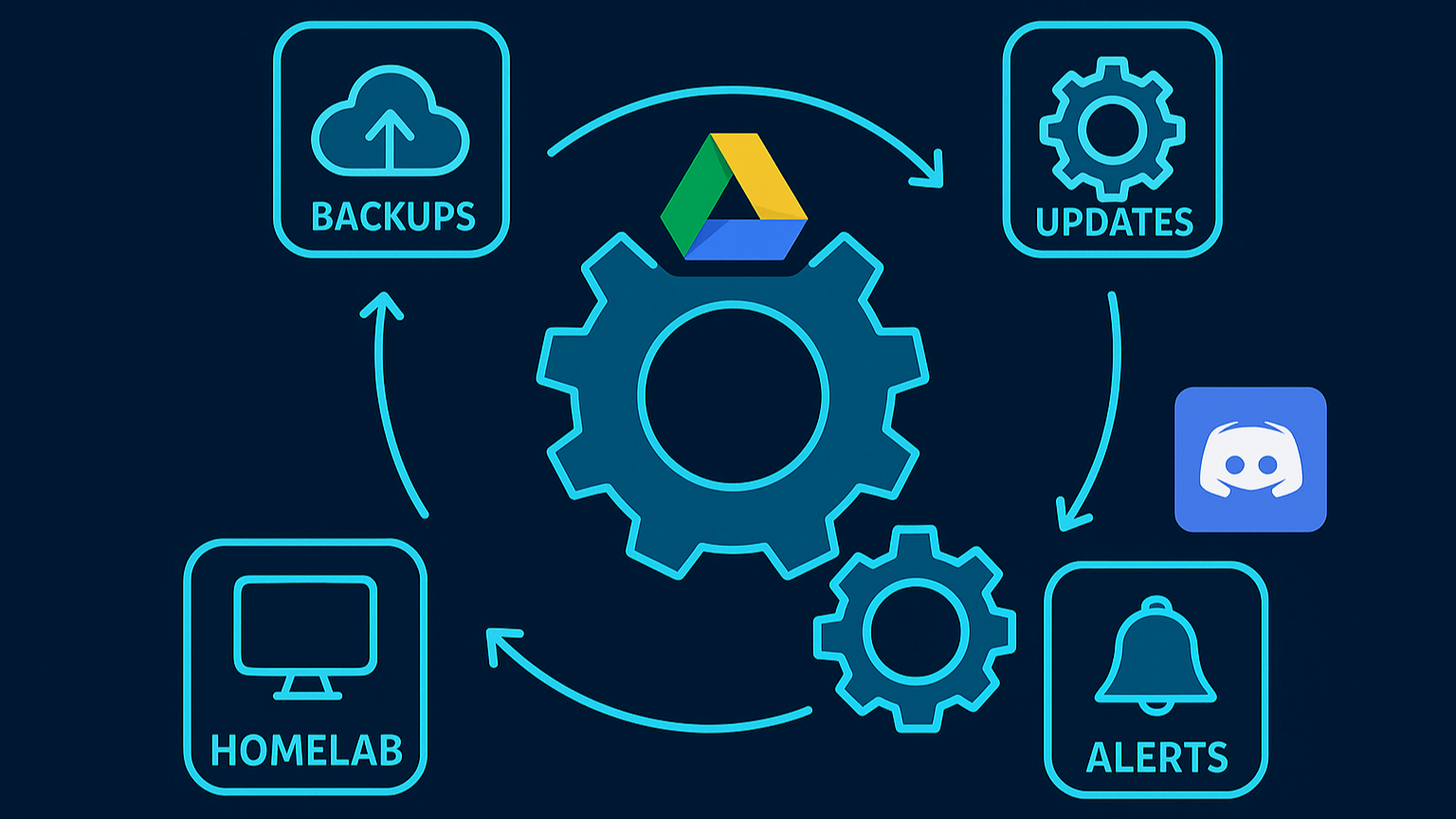
This guide will show you how to set up the three pillars of modern IT operations: Automated Backups, Automated Updates, and Proactive Alerting. By the end, you’ll have a homelab that runs itself, ensures your data is safe, stays up-to-date, and notifies you when something goes wrong.
Chapter 1: The Automated Backup Strategy (at 3 AM)
A solid backup strategy is non-negotiable. I implemented a robust system inspired by the “3-2-1” rule, focusing on redundancy and an off-site copy. My strategy involves maintaining two copies of my data in two separate locations: one local backup on the server itself for fast recovery, and one automated, off-site backup to Google Drive to protect against a local disaster like a fire or hardware failure.
This script runs at 3 AM, creates a local backup, uploads it, and then notifies Discord.
Step 1: Configure rclone for Google Drive
First, you need a tool to communicate with Google Drive. We’ll use rclone.
- Install
rcloneon your Debian server:sudo -v ; curl https://rclone.org/install.sh | sudo bash - Run the interactive setup:
rclone config - Follow the Prompts:
n(New remote) *name>:gdrive(You can name it anything)storage>: Find and selectdrive(Google Drive).client_id>&client_secret>: Press Enter for both to leave blank.scope>: Choose1(Full access).Use auto config? y/n>: This is a critical step. Since we are on a headless server, typenand press Enter.
- Authorize Headless:
rclonewill give you a command to run on a machine with a web browser (like your main computer).- On your main computer (where you have
rcloneinstalled), run therclone authorize "drive" "..."command. - This will open your browser, ask you to log in to Google, and grant permission.
- Your main computer’s terminal will then output a block of text (your
config_token).
- Paste Token: Copy the token from your main computer and paste it back into your server’s
rcloneprompt. - Finish the prompts, and your connection is complete.
Step 2: Create the Backup Script
Next, create a shell script to perform the backup.
Create the file and make it executable:
nano ~/backup.sh
chmod +x ~/backup.sh
Paste in the following script. You must edit the first 7 variables to match your setup.
#!/bin/bash

# --- Configuration ---
SOURCE_DIR="/path/to/your/docker"  # <-- Change to your Docker projects directory
BACKUP_DIR="/path/to/your/backups"  # <-- Change to your backups folder
FILENAME="homelab-backup-$(date +%Y-%m-%d).tar.gz"
LOCAL_RETENTION_DAYS=3
CLOUD_RETENTION_DAYS=3
RCLONE_REMOTE="gdrive"  # <-- Must match your rclone remote name
RCLONE_DEST="Homelab Backups"  # <-- Folder name in Google Drive

# --- "https://discordapp.com/api/webhooks/141949178941/6Tx6f1yjf26LztQ" ---
DISCORD_WEBHOOK_URL="YOUR_DISCORD_WEBHOOK_URL"

# --- Notification Function ---
send_notification() {
    MESSAGE=$1
    curl -H "Content-Type: application/json" -X POST -d "{\"content\": \"$MESSAGE\"}" "$DISCORD_WEBHOOK_URL"
}

# --- Script Logic ---
echo "--- Starting Homelab Backup: $(date) ---"
send_notification "✅ Starting Homelab Backup..."

# 1. Create local backup
echo "Creating local backup..."
tar -czf "${BACKUP_DIR}/${FILENAME}" -C "${SOURCE_DIR}" .
echo "Local backup created at ${BACKUP_DIR}/${FILENAME}"

# 2. Upload to Google Drive
echo "Uploading backup to ${RCLONE_REMOTE}..."
rclone copy "${BACKUP_DIR}/${FILENAME}" "${RCLONE_REMOTE}:${RCLONE_DEST}"
echo "Upload complete."

# 3. Clean up local backups
echo "Cleaning up local backups older than ${LOCAL_RETENTION_DAYS} days..."
find "${BACKUP_DIR}" -type f -name "*.tar.gz" -mtime +${LOCAL_RETENTION_DAYS} -delete
echo "Local cleanup complete."

# 4. Clean up cloud backups
echo "Cleaning up cloud backups older than ${CLOUD_RETENTION_DAYS} days..."
rclone delete "${RCLONE_REMOTE}:${RCLONE_DEST}" --min-age ${CLOUD_RETENTION_DAYS}d
echo "Cloud cleanup complete."

echo "Backup process finished."
send_notification "🎉 Homelab backup and cloud upload completed successfully!"
Step 3: Automate with Cron
To run this script automatically, you must add it to the root user’s crontab. This is critical for giving the script permission to read all Docker files.
- Open the root crontab editor:
sudo crontab -e - Add the following line to schedule the backup for 3:00 AM every morning:
0 3 * * * /path/to/your/backup.shYou will now get a fresh, onsite and off-site backup every night and a Discord message when it’s done.
Chapter 2: Automated Updates with Watchtower (at 6 AM)
Manually updating every Docker container is tedious. We can automate this by deploying Watchtower.
Step 1: The Docker Compose File
Create a docker-compose.yml for Watchtower. This configuration schedules it to run once a day at 6:00 AM, clean up old images, and send a Discord notification only if it finds an update.
mkdir -p ~/docker/watchtowercd ~/docker/watchtowernano docker-compose.ymlPaste in this configuration:
services:
  watchtower:
    image: containrrr/watchtower
    container_name: watchtower
    restart: unless-stopped
    volumes:
      - /var/run/docker.sock:/var/run/docker.sock
    environment:
	    # Timezone setting
	    TZ: America/Chicago

	    # Discord notification settings
	    WATCHTOWER_NOTIFICATIONS: shoutrrr
	    WATCHTOWER_NOTIFICATION_URL: "discord://YOUR_DISCORD_WEBHOOK_ID_URL>

	    # Notification settings
	    WATCHTOWER_NOTIFICATIONS_LEVEL: info
	    WATCHTOWER_NOTIFICATION_REPORT: "true"
	    WATCHTOWER_NOTIFICATIONS_HOSTNAME: Homelab-Laptop

	    # Update settings
	    WATCHTOWER_CLEANUP: "true"
	    WATCHTOWER_INCLUDE_STOPPED: "false"
	    WATCHTOWER_INCLUDE_RESTARTING: "true"
	    WATCHTOWER_SCHEDULE: "0 0 6 * * *"
Note: The
WATCHTOWER_NOTIFICATION_URLuses a specialshoutrrrformat for Discord, which looks likediscord://token@webhook-id.
Now, every morning at 6:00 AM, Watchtower will scan all running containers and update any that have a new image available.
Chapter 3: Proactive Alerting (24/7)
The final piece of automation is proactive alerting. This setup ensures you are immediately notified via Discord if something goes wrong.
Step 1: The Alerting Pipeline
The pipeline we’ll build is: Prometheus (detects problems) -> Alertmanager (groups and routes alerts) -> Discord (notifies you).
Step 2: Deploy Alertmanager
First, deploy Alertmanager. It must be on the same npm_default network as Prometheus.
mkdir -p ~/docker/alertmanagercd ~/docker/alertmanagerCreate the
alertmanager.ymlconfiguration file:nano alertmanager.ymlPaste in this configuration. It uses advanced routing to send
criticalalerts every 2 hours andwarningalerts every 12 hours.global: resolve_timeout: 5m route: group_by: ["alertname", "severity"] group_wait: 30s group_interval: 10m repeat_interbal: 12h receiver: "discord-notifications" routes: - receiver: "discord-notifications" matchers: - severity="critical" repeat_interval: 2h - receiver: "discord-notifications" matchers: - severity="warning" repeat_interval: 12h receivers: - name: "discord-notifications" discord_configs: - webhook_url: "YOUR_DISCORD_WEBHOOK_URL" send_resolved: trueNow create the
docker-compose.ymlfor Alertmanager:nano docker-compose.ymlPaste in the following:
services:
  alertmanager:
    image: prom/alertmanager:latest
    container_name: alertmanager
    restart: unless-stopped
    volumes:
      - ./alertmanager.yml:/etc/alertmanager/alertmanager.yml
    networks:
      - npm_default

networks:
  npm_default:
    external: true
Launch it:
docker compose up -d
Step 3: Configure Prometheus
Finally, tell Prometheus to send alerts to Alertmanager and load your rules.
Create your rules file,
~/docker/monitoring/alert_rules.yml, with rules for “Instance Down,” “High CPU,” “Low Disk Space,” etc.cd ~/docker/monitoring nano alert_rules.ymlAdd the
alert_rules.ymlas a volume in your~/docker/monitoring/docker-compose.yml.volumes: - ./prometheus.yml:/etc/prometheus/prometheus.yml - ./alert_rules.yml:/etc/prometheus/alert_rules.yml - prometheus_data:/prometheusAdd the
alertingandrule_filesblocks to your~/docker/monitoring/prometheus.yml:groups: -name: Critical System Alerts interval: 30s rules: - alert: InstanceDown expr: up == 0 for: 2m labels: severity: critical annotations: summary: "🔴 Instance {{ $labels.instance }} is DOWN" description: "Service {{ $labels.job }} has been unreachable for 2 minutes." - alert: LaptopOnBattery expr: node_power_supply_online == 0 for: 5m labels: severity: critical annotations: summary: "🔋 Server running on BATTERY" description: "Homelab has been unplugged for 5 minutes. Check power connection!" - alert: LowBatteryLevel expr: node_power_supply_capacity < 20 and node_power_supply_online == 0 for: 1m labels: severity: critical annotations: summary: "⚠️ CRITICAL: Battery at {{ $value }}%" description: "Battery below 20%. Server may shut down soon!" - alert: DiskAlmostFull expr: (node_filesystem_avail_bytes{mountpoint="/",fstype!="tmpfs"} / node_filesystem_size_bytes{mountpoint="/",fstype!="tmpfs"}) * 100 < 10 for: 5m labels: severity: critical annotations: summary: "💾 Disk space critically low: {{ $value | humanize }}% remaining" description: "Root filesystem has less than 10% free space." - alert: OutOfMemory expr: (node_memory_MemAvailable_bytes / node_memory_MemTotal_bytes) * 100 < 5 for: 2m labels: severity: critical annotations: summary: "🧠 Memory critically low: {{ $value | humanize }}% available" description: "Less than 5% memory available. System may become unresponsive." - alert: CriticalCpuTemperature expr: node_hwmon_temp_celsius{chip="coretemp"} > 95 for: 2m labels: severity: critical annotations: summary: "🔥 CRITICAL CPU Temperature: {{ $value }}°C" description: "CPU temperature exceeds 95°C. Thermal throttling or shutdown imminent!" - name: Warning System Alerts interval: 1m rules: - alert: HighCpuUsage expr: 100 - (avg by (instance) (rate(node_cpu_seconds_total{mode="idle"}[5m])) * 100) > 80 for: 5m labels: severity: warning annotations: summary: "⚡ High CPU usage: {{ $value | humanize }}%" description: "CPU usage above 80% for 5 minutes on {{ $labels.instance }}" - alert: HighSystemLoad expr: node_load5 / on(instance) count(node_cpu_seconds_total{mode="idle"}) by (instance) > 1.5 for: 10m labels: severity: warning annotations: summary: "📊 High system load: {{ $value | humanize }}" description: "5-minute load average is 1.5x CPU cores for 10 minutes." - alert: HighMemoryUsage expr: (node_memory_MemAvailable_bytes / node_memory_MemTotal_bytes) * 100 < 20 for: 5m labels: severity: warning annotations: summary: "🧠 High memory usage: {{ $value | humanize }}% available" description: "Less than 20% memory available." - alert: HighCpuTemperature expr: node_hwmon_temp_celsius{chip="coretemp"} > 85 for: 5m labels: severity: warning annotations: summary: "🌡️ High CPU temperature: {{ $value }}°C" description: "CPU temperature above 85°C. Consider improving cooling." - alert: HighNvmeTemperature expr: node_hwmon_temp_celsius{chip="nvme"} > 65 for: 10m labels: severity: warning annotations: summary: "💿 High NVMe temperature: {{ $value }}°C" description: "NVMe drive temperature above 65°C for 10 minutes." - alert: DiskSpaceLow expr: (node_filesystem_avail_bytes{mountpoint="/",fstype!="tmpfs"} / node_filesystem_size_bytes{mountpoint="/",fstype!="tmpfs"}) * 100 < 20 for: 10m labels: severity: warning annotations: summary: "💾 Disk space low: {{ $value | humanize }}% remaining" description: "Root filesystem has less than 20% free space." - alert: HighSwapUsage expr: ((node_memory_SwapTotal_bytes - node_memory_SwapFree_bytes) / node_memory_SwapTotal_bytes * 100) > 50 for: 10m labels: severity: warning annotations: summary: "💱 High swap usage: {{ $value | humanize }}%" description: "Swap usage above 50%. System may be memory-constrained." # Monitor your USB-C hub ethernet adapter (enx00) - alert: EthernetInterfaceDown expr: node_network_up{device="enx00"} == 0 for: 2m labels: severity: warning annotations: summary: "🌐 USB-C Ethernet adapter is DISCONNECTED" description: "Your USB-C hub ethernet connection (enx00) is down. Check cable or hub." - alert: HighNetworkErrors expr: rate(node_network_receive_errs_total{device="enx00"}[5m]) > 10 or rate(node_network_transmit_errs_total{device="enx00"}[5m]) > 10 for: 5m labels: severity: warning annotations: summary: "🌐 High network errors on USB-C ethernet" description: "Your ethernet adapter is experiencing high error rate. Check cable quality." - name: Docker Container Alerts interval: 1m rules: # Simplified alert - just checks if container exporter is working - alert: ContainerMonitoringDown expr: absent(container_last_seen) for: 2m labels: severity: warning annotations: summary: "🐳 Container monitoring is down" description: "cAdvisor or container metrics are not available. Check if containers are being monitored." - alert: ContainerRestarting expr: rate(container_start_time_seconds[5m]) > 0.01 for: 2m labels: severity: warning annotations: summary: "🐳 Container {{ $labels.name }} is restarting" description: "Container {{ $labels.name }} has restarted recently." - alert: ContainerHighCpu expr: rate(container_cpu_usage_seconds_total{name!~".*POD.*",name!=""}[5m]) * 100 > 80 for: 10m labels: severity: warning annotations: summary: "🐳 Container {{ $labels.name }} high CPU: {{ $value | humanize }}%" description: "Container CPU usage above 80% for 10 minutes."Restart Prometheus to apply the changes:
cd ~/docker/monitoring
docker compose up -d --force-recreate prometheus
Now, if any service fails or your server’s resources run low, you will get an instant notification in Discord.
Step 3: The Critical Firewall Fix
You may find your alerts are not sending. This is often due to a conflict between Docker and ufw.
Open the main
ufwconfiguration file:sudo nano /etc/default/ufwChange
DEFAULT_FORWARD_POLICY="DROP"toDEFAULT_FORWARD_POLICY="ACCEPT".Reload the firewall:
sudo ufw reloadRestart your containers that need internet access:
docker compose restart
Now, if any service fails or your server’s resources run low, you will get an instant notification in Discord.
Conclusion
Our homelab has now truly come to life. It’s no longer just a collection of services but a resilient, self-maintaining platform. With automated backups to Google Drive, daily updates via Watchtower, and proactive alerts with Prometheus and Alertmanager, our server can now run 24/7 with minimal manual intervention. We’ve built a solid, reliable, and intelligent system.
But there’s one critical piece still missing: end-to-end security for our local services.
Right now, we’re accessing our dashboards at addresses like http://grafana.local, which browsers flag as “Not Secure.” What if we could use a real, public domain name for our internal services and get a valid HTTPS certificate, all without opening a single port on our router?
In the next part of this series, I’ll show you exactly how to do that. We’ll dive into an advanced but powerful setup using Cloudflare and Nginx Proxy Manager to bring trusted, zero-exposure SSL to everything we’ve built.
Stay tuned!