Introduction
Welcome to Part 3 of my homelab series! In the previous parts, I built my server and deployed a suite of management and monitoring tools. Now, it’s time to build the brain of my network: a robust, redundant, and high-availability DNS system using AdGuard Home that works both at home and on the go.
In this detailed guide, I’ll walk you through how I deployed a total of three AdGuard Home instances, each with its own unique IP address. I set up a primary resolver on my homelab, a secondary failover resolver in the cloud for my mobile devices, and a tertiary resolver on a separate virtual network for local redundancy.
Chapter 1: The Local Workhorse (Primary DNS)
I started by deploying my main, day-to-day DNS resolver on my homelab server.
Step 1: Deploying AdGuard Home with Docker Compose
First, I SSHed into my server, created a directory for the project, and a docker-compose.yml file to define the service.
mkdir -p ~/docker/adguard-primary
cd ~/docker/adguard-primary
nano docker-compose.yml
I pasted in the following configuration. This runs the AdGuard Home container, maps all the necessary ports for DNS and the web UI, and connects it to the shared npm_default network I set up in Part 2.
services:
  adguardhome:
    image: adguard/adguardhome:latest
    container_name: adguard-primary
    restart: unless-stopped
    ports:
      - "53:53/tcp"
      - "53:53/udp"
      - "8080:80/tcp"      # Web UI
      - "853:853/tcp"      # DNS-over-TLS
    volumes:
      - ./workdir:/opt/adguardhome/work
      - ./confdir:/opt/adguardhome/conf
    networks:
      - npm_default

networks:
  npm_default:
    external: true
I then launched the container by running:
docker compose up -d
Step 2: Initial AdGuard Home Setup Wizard
I navigated to
http://<your-server-ip>:3000in my web browser to start the setup wizard.I clicked “Get Started.”
On the “Admin Web Interface” screen, I changed the “Listen Interface” to
All interfacesand the port to80.On the “DNS server” screen, I changed the “Listen Interface” to
All interfacesand left the port as53.I followed the prompts to create my admin username and password.
Once the setup was complete, I was redirected to my main dashboard, now available at
http://<your-server-ip>:8080.
Step 3: Configure My Home Router
To make all my devices use AdGuard automatically, I logged into my home router’s admin panel, found the DHCP Server settings, and changed the Primary DNS Server to my homelab’s static IP address (e.g., 192.168.1.10).
Chapter 2: The Cloud Failover (Secondary DNS on Oracle Cloud)
An off-site DNS server ensures I have ad-blocking on my mobile devices and acts as a backup.
Why I Chose Oracle Cloud
After testing the free tiers of both AWS and Linode, I chose Oracle Cloud Infrastructure (OCI). In my experience, OCI’s “Always Free” tier is far more generous with its resources. It provides powerful Ampere A1 Compute instances with up to 4 CPU cores and 24 GB of RAM, plus 200 GB of storage and significant bandwidth, all for free. This was ideal for running my service 24/7 without the strict limitations or eventual costs associated with other providers.
Step 1: Launching the Oracle Cloud VM
Sign Up: I created my account on the Oracle Cloud website.
Create VM Instance: In the OCI console, I navigated to Compute > Instances and clicked “Create instance”.
Configure Instance:
Name: I gave it a name like
AdGuard-Cloud.Image and Shape: I clicked “Edit”. For the image, I selected Ubuntu. For the shape, I selected “Ampere” and chose the
VM.Standard.A1.Flexshape (it’s “Always Free-eligible”).Networking: I used the default VCN and made sure “Assign a public IPv4 address” was checked.
SSH Keys: I added my SSH public key.
I clicked Create. Once the instance was running, I took note of its Public IP Address.
Step 2: Configuring the Cloud Firewall
For maximum security, I locked down the administrative ports to only my home IP address.
Find My Public IP: I went to a site like
whatismyip.comand copied my home’s public IP address.Edit Security List: I navigated to my instance’s details page, clicked the subnet link, then clicked the “Security List” link.
I clicked “Add Ingress Rules” and added the following rules:
For SSH (Port 22): I set the Source to my home’s public IP, followed by
/32(e.g.,203.0.113.55/32). This is a critical security step.For AdGuard Setup (Port 3000): I also set the Source to my home’s public IP with
/32.For AdGuard Web UI (Port 80/443): I set the Source to my home’s public IP with
/32as well.For Public DNS (Port 53, 853, etc.): I set the Source to
0.0.0.0/0(Anywhere) to allow all my devices to connect from any network.
Step 3: Installing AdGuard Home & Configuring SSL
Connect via SSH: I used the public IP and my SSH key to connect to the VM.
Run Install Script: I chose to install AdGuard Home directly on the OS for this instance.
curl -s -S -L https://raw.githubusercontent.com/AdguardTeam/AdGuardHome/master/scripts/install.sh | sh -s -- -vThe script will give you a link, like
http://YOUR_INSTANCE_IP:3000. Open this in your browser. Follow the on-screen steps to create your admin username and password.Get a Hostname: I went to No-IP.com, created a free hostname (e.g.,
my-cloud-dns.ddns.net), and pointed it to my cloud VM’s public IP.Enable Encryption: We’ll use Let’s Encrypt and Certbot to get a free SSL certificate, which lets us use secure
https://and encrypted DNS.- Install Certbot: In your SSH session, run these commands:
sudo apt update sudo apt install certbot -y- Get the Certificate: Run this command, replacing the email and domain with your own.
# This command will temporarily stop any service on port 80, get the certificate, and then finish.
sudo certbot certonly --standalone --agree-tos --email YOUR_EMAIL@example.com -d your-no-ip-hostname.ddns.net
If it’s successful, it will tell you where your certificate files are saved (usually in
/etc/letsencrypt/live/your-no-ip-hostname.ddns.net/).- Configure AdGuard Home Encryption:
- Go to your AdGuard Home dashboard (Settings -> Encryption settings).
- Check “Enable encryption”.
- In the “Server name” field, enter your No-IP hostname.
- Under “Certificates”, choose “Set a certificates file path”.
- Certificate path:
/etc/letsencrypt/live/your-no-ip-hostname.ddns.net/fullchain.pem - Private key path:
/etc/letsencrypt/live/your-no-ip-hostname.ddns.net/privkey.pem
- Certificate path:
- Click “Save configuration”. The page will reload on a secure
https://connection!
Step 4: Automating SSL Renewal (Cron Job)
Let’s Encrypt certificates last for 90 days. We can tell our server to automatically renew them.
Open Firewall (Port 80): Certbot requires port 80 for its renewal challenge. We must add this
ufwrule on our server, or the renewal will fail.sudo ufw allow 80/tcpOpen the Cron Editor: In SSH, run
sudo crontab -eand choosenanoas your editor.Add the Renewal Job: Add this line to the bottom of the file. It tells the server to try renewing the certificate every day at 2:30 AM.
30 2 * * * certbot renew --quiet --pre-hook "systemctl stop AdGuardHome.service" --post-hook "systemctl start AdGuardHome.service"Note: The
--post-hookis critical. It guarantees AdGuard Home restarts even if the renewal fails, which prevents a service outage.Save and exit (
Ctrl+X, thenY, thenEnter). Your server will now keep its certificate fresh forever!
Step 5: Creating a Cloud Backup (Snapshot)
A critical final step for any cloud service is creating a backup. Here is how I did it in OCI:
In the OCI Console, I navigated to the details page for my
AdGuard-Cloudinstance.Under the “Resources” menu on the left, I clicked on “Boot volume”.
On the Boot Volume details page, under “Resources,” I clicked “Boot volume backups”.
I clicked the “Create boot volume backup” button.
I gave the backup a descriptive name (e.g.,
AdGuard-Cloud-Backup-YYYY-MM-DD) and clicked the create button. This creates a full snapshot of my server that I can use to restore it in minutes.
Step 6: How to Use Your Cloud DNS on Mobile Devices
The main benefit of the cloud server is having ad-blocking on the go. Here’s how I set it up on my mobile phone using secure, encrypted DNS.
For Android (Version 9+):
Modern Android has a built-in feature called “Private DNS” that uses DNS-over-TLS (DoT), which is perfect for this.
Open Settings on your Android device.
Tap on “Network & internet” (this may be called “Connections” on some devices).
Find and tap on “Private DNS”. You may need to look under an “Advanced” section.
Select the option labeled “Private DNS provider hostname”.
In the text box, enter the No-IP hostname you created for your Oracle Cloud server (e.g.,
my-cloud-dns.ddns.net).Tap Save.
Your phone will now send all its DNS queries through an encrypted tunnel to your personal AdGuard Home server in the cloud, giving you ad-blocking on both Wi-Fi and cellular data.
For iOS (iPhone/iPad):
On iOS, the easiest way to set up encrypted DNS is by installing a configuration profile.
On your iPhone or iPad, open Safari.
Go to a DNS profile generator site, like the one provided by AdGuard.
When prompted, enter the DNS-over-HTTPS (DoH) address for your cloud server. It will be your No-IP hostname with
/dns-queryat the end (e.g.,https://my-cloud-dns.ddns.net/dns-query).Download the generated configuration profile.
Go to your device’s Settings app. You will see a new “Profile Downloaded” item near the top. Tap on it.
Follow the on-screen prompts to Install the profile. You may need to enter your device passcode.
Once installed, your iOS device will also route its DNS traffic through your secure cloud server.
Chapter 3: Ultimate Local Redundancy (Tertiary DNS with Macvlan)
For an extra layer of redundancy within my homelab, I created a third AdGuard instance. By using an advanced Docker network mode called macvlan, this container gets its own unique IP address on my home network, making it a truly independent resolver.
Create Macvlan Network: First, I created the macvlan network, telling it which of my physical network cards to use (
eth0in my case).docker network create -d macvlan \ --subnet=192.168.1.0/24 \ --gateway=192.168.1.1 \ -o parent=eth0 homelab_netDeploy Tertiary Instance: I created a new folder (
~/docker/adguard-tertiary) and thisdocker-compose.yml. Notice there are noportssince the container gets its own IP.services: adguardhome2: image: adguard/adguardhome:latest container_name: adguardhome2 volumes: - "./work:/opt/adguardhome/work" - "./conf:/opt/adguardhome/conf" networks: homelab_net: ipv4_address: 192.168.1.11 # The new, unique IP for this container restart: unless-stopped networks: homelab_net: external: trueConfigure Router for Local Failover: To complete the local redundancy, I went back into my router’s DHCP settings.
In the Primary DNS field, I have the IP of my main homelab server (e.g.,
192.168.1.10).In the Secondary DNS field, I entered the unique IP address I assigned to my macvlan container (e.g.,
192.168.1.11).
Now, if my primary AdGuard container has an issue, all devices on my network will automatically fail over to the tertiary instance.
Chapter 4: Fine-Tuning and Integration
Finally, I implemented some best practices on my primary AdGuard Home instance.
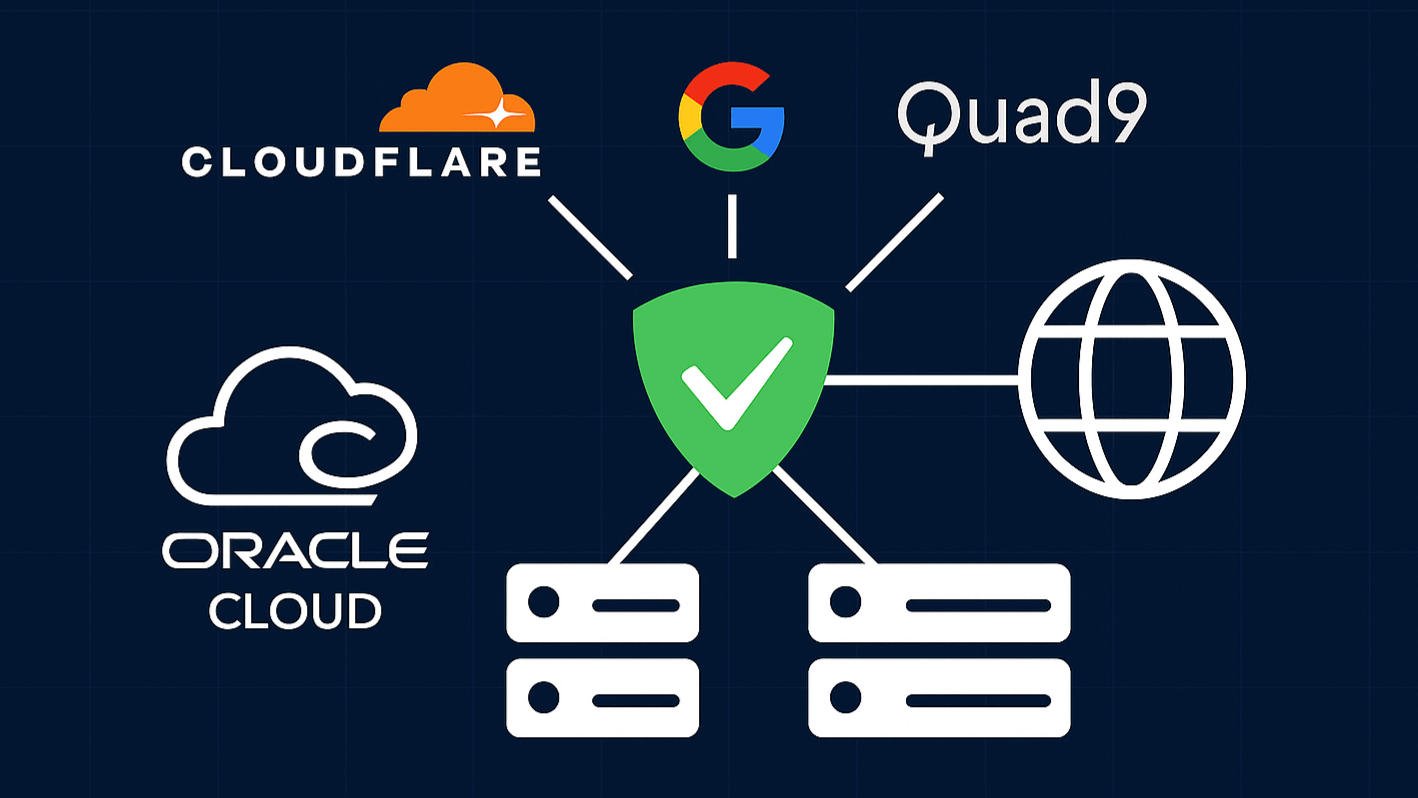
Upstream DNS Servers: Under Settings > DNS Settings, I configured AdGuard to send requests to multiple resolvers in parallel for speed and reliability, using Cloudflare (
1.1.1.1), Google (8.8.8.8), and Quad9 (9.9.9.9).Enable DNSSEC: In the same settings page, I enabled DNSSEC to verify the integrity of DNS responses.
DNS Blocklists: I added several popular lists from the “Filters > DNS blocklists” page, including the AdGuard DNS filter and the OISD Blocklist, for robust protection.
DNS Rewrites for Local Services: This is the key to a clean homelab experience. For each service, I performed a detailed two-step process:
Create the Proxy Host in Nginx Proxy Manager: I logged into my NPM admin panel, went to Hosts > Proxy Hosts, and clicked “Add Proxy Host”. For my Homer dashboard, I set the Forward Hostname to
homer(the container name) and the Forward Port to8080(its internal port), usinghomer.localas the domain name.Create the DNS Rewrite in AdGuard Home: I logged into my primary AdGuard dashboard, went to Filters > DNS Rewrites, and clicked “Add DNS rewrite”. I entered
homer.localas the domain and the IP address of my Nginx Proxy Manager server as the answer.
Conclusion
I’ve now built an incredibly robust, multi-layered DNS infrastructure. My home devices use the primary local server, which is backed up by a second, independent local server, and my mobile devices use a completely separate cloud instance for on-the-go protection. This provides a resilient, secure, and ad-free internet experience.
In the final part of this series, we’ll shift our focus from deploying services to maintaining them. I’ll show you how I set up a fully automated operations pipeline for my homelab, including daily off-site backups, automatic container updates with Watchtower, and proactive alerting with Prometheus. Stay tuned!